
Get Bookings in Under 5 Minutes: Embed Booking Widget for Service Pros
Get Bookings in Under 5 Minutes: Embed Booking Widget for Service Pros

Copy your booking tool’s embed snippet and paste it into a Custom HTML or code block on your site. Choose popup mode if you want the fastest page load, or inline mode if you’re building a dedicated booking page. Most installs on WordPress, Wix, Squarespace, or Shopify take under five minutes and need zero developer help.
TL;DR:
- Ensure you have a valid booking account with at least one service, calendar sync enabled, and HTTPS on your site before embedding.
- Verify the embed code contains a populated token and test it in preview mode to avoid blank widgets caused by misconfigured snippets.
- Default to using popup mode for faster load times and better mobile usability, especially if your site builder restricts custom scripts.
- Test the widget thoroughly in staging or unpublished pages, checking for script errors, blocked requests, or security policies before going live.
- Connect and verify your calendar sync, set accurate service durations, and include privacy and tracking details to prevent errors and protect customer data.
Table of Contents
- Quick Checklist Before You Embed a Booking Widget
- Where Do You Get the Embed Code?
- Which Embed Mode Should You Use?
- Platform-Specific Steps for WordPress, Wix, Squarespace, Shopify, and Webflow
- How Do You Keep the Widget Fast and Mobile-Friendly?
- Test and Troubleshoot Before You Publish
- Do Availability and Privacy Settings Need Attention Too?
- Embedding Booking on an Exclusively Site or App
- Why Embedding Beats Linking Out
- Exclusively: Branded Booking, Native Apps, and Built-In Payments
- Sources
Quick Checklist Before You Embed a Booking Widget
Before you touch any code, confirm you actually have what you need. Missing one of these items is the top reason installs stall out halfway through.
- Admin or editor access to your CMS or page editor (not just a viewer login)
- An active booking account with at least one service and time slot configured, plus calendar sync turned on
- HTTPS enabled on your site, since most embed scripts refuse to load over plain HTTP
- Access to add custom HTML, whether that’s a block, a code injection field, or theme file editing
- The embed or share settings menu in your booking dashboard, usually labeled something like “Website,” “Embed,” or “Direct Bookings”
Once those five boxes are checked, the rest of this is copy and paste. If you’re missing calendar sync specifically, fix that first. An embedded widget showing wrong availability creates more headaches than no widget at all.
Where Do You Get the Embed Code?
Open your booking dashboard and look for a menu labeled “Embed,” “Share,” “Website,” or “Direct Bookings.” Almost every provider tucks the embed generator somewhere in account or site settings, and it typically hands you one of two snippet types.
An iframe snippet is a self-contained frame that renders your calendar inside a box on the page. An async script snippet loads a small JavaScript file that builds the widget after the page loads, which is gentler on load times. Inside either one, watch for two attributes: data-token (your unique account identifier) and data-mode (which tells the widget whether to render inline, as a popup, or full page).
- Confirm the token field is actually populated. If you see a placeholder like
YOUR_TOKEN, the widget will show blank on your live site. - If your builder blocks custom scripts entirely, skip embedding and use the direct booking link instead, which works anywhere you can paste a URL.
Most dashboards also include a preview pane so you can check the snippet renders correctly before it ever touches your live pages.
Snippet check: if data-token still reads as a placeholder value after you paste the code, the widget won’t load. That single detail causes more blank-widget support tickets than any other setup mistake.
Which Embed Mode Should You Use?
Every major booking tool offers roughly three ways to deploy: inline, modal/popup, or a full-page link. Picking the right one matters more than most business owners realize, because each mode trades off differently on speed, mobile usability, and how “native” the booking flow feels.
- Inline iframe. The calendar renders directly in the page, which works well for a dedicated
/bookor services page. It feels native to visitors but adds the most weight to that specific page’s load time. - Popup or floating button. A small button sits on every page and only loads the booking interface when clicked. This is usually the best all-around choice for speed and cross-page accessibility.
- Full-page link. A standalone booking URL you link to from a button, email, or social bio. It’s the safest fallback when a site builder blocks scripts outright.
Pro Tip: If you’re not sure which mode to pick, default to popup. It keeps your homepage fast and still gives clients a one-click path to book from any page on your site.
Platform-Specific Steps for WordPress, Wix, Squarespace, Shopify, and Webflow
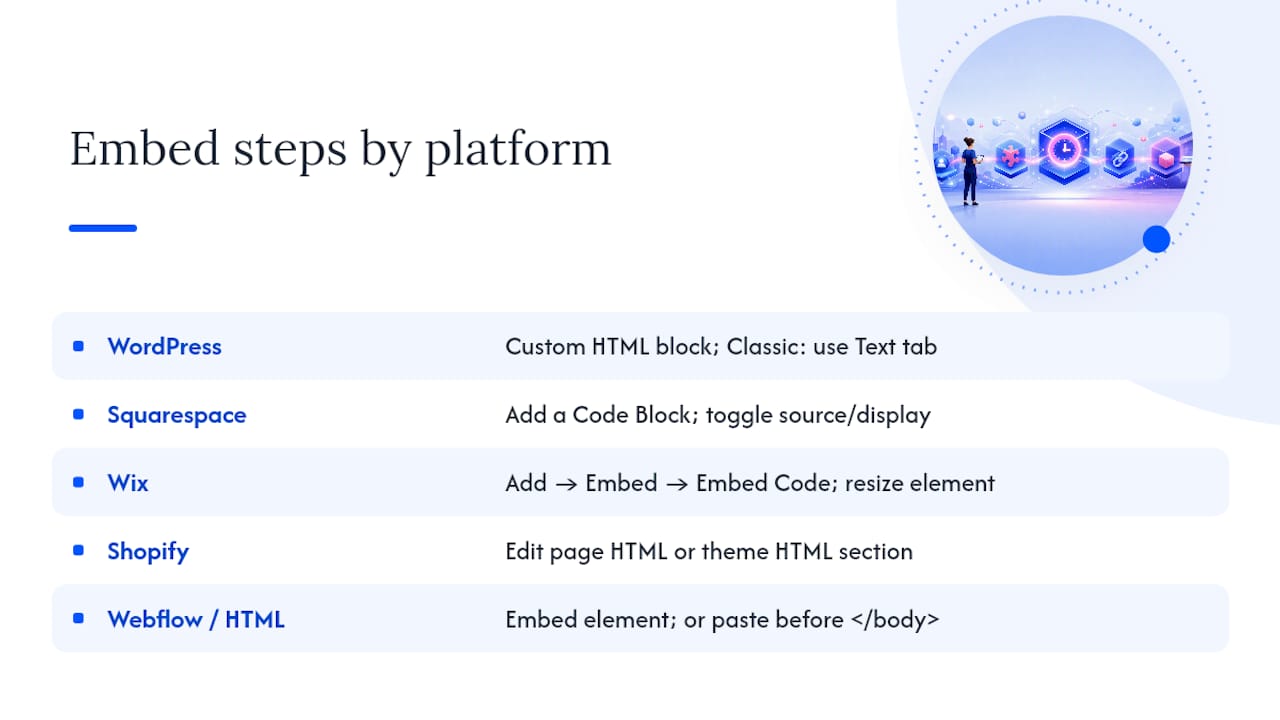
Every builder handles embedded code a little differently, but the pattern is nearly identical everywhere: find the HTML block, paste the snippet, preview, publish.
WordPress: In the Block Editor, add a Custom HTML block and paste the snippet there. If you’re on the Classic Editor, switch to the Text tab, not Visual. Pasting into the Visual editor almost always strips the script tags.
Squarespace: Add a Code Block to the page, then paste your snippet, toggling between source and display view depending on whether you’re editing raw code.
Wix: Click Add, then Embed, then Embed Code. Paste your snippet and drag the element’s edges to resize it so nothing gets cut off.
Shopify: Edit the page’s HTML directly, or open your theme editor and find the HTML section for the template you’re working on.
Webflow or plain HTML: Drop in an Embed element on Webflow, or on a plain HTML site, paste the script just before the closing </body> tag. Placement matters here. Scripts pasted in the <head> can block rendering.
Every platform above includes a preview mode. Use it. Publishing straight to a live page without previewing is how broken layouts end up in front of paying customers.
How Do You Keep the Widget Fast and Mobile-Friendly?
An embedded widget that slows your site down or breaks on phones will cost you more bookings than it creates. A few settings decide whether that happens.
- Use the async script version when your provider offers one; it loads after the main page content, protecting your load speed.
- Favor popup or floating modes over full inline embeds if page speed is a priority, since they only load on interaction.
- Set a minimum height or enable auto-resize so the calendar never gets clipped mid-flow, especially on mobile screens.
- Adjust the widget’s z-index if a popup ever appears behind your site’s header or navigation.
- Use data attributes for brand color and button text where your provider supports it, which survives theme updates better than custom CSS overrides.
Pro Tip: Run a quick Largest Contentful Paint (LCP) check before and after you add the widget. If your load time jumps noticeably, switch from inline to popup mode; it’s usually the fastest fix.
Test and Troubleshoot Before You Publish
Rushing straight to a live page is the single most common mistake in this whole process. Run through this sequence instead:
- Preview the widget inside your booking tool’s own preview pane first.
- Paste the snippet onto an unpublished or staging page and test it there.
- Open that page in an incognito or private browser window to rule out cached login sessions.
- If the widget shows blank, check three things: an unfilled token, a script URL returning a 404, or a Content Security Policy blocking the third-party script.
- Open your browser’s developer tools and check the Network and Console tabs for failed requests or JavaScript errors.
- Book a test appointment yourself and confirm the confirmation email and calendar invite actually arrive.
If a widget loads blank, it’s almost never a mystery. Nine times out of ten it’s a missing token, a 404 on the booking script, or a security policy silently blocking the third-party call. Check those three before you assume something bigger is broken.
Do Availability and Privacy Settings Need Attention Too?
A fast, good-looking widget is worthless if it shows the wrong availability or mishandles customer data. Handle these basics before you drive traffic to it.
- Connect and verify your Google or Outlook calendar sync so double bookings don’t slip through.
- Set accurate service durations, buffers between appointments, and minimum lead times inside your booking dashboard.
- Collect only the customer fields you actually need, and link to your privacy policy near the booking form.
- If you’re tracking marketing performance, add UTM parameters or your provider’s supported data attributes so you know which channel drove each booking.
Vendor dashboards for tools that support inline, popup, and full-page deployment typically expose these settings in the same panel as the embed code, so you’re rarely hunting through multiple menus to get it right.
Embedding Booking on an Exclusively Site or App
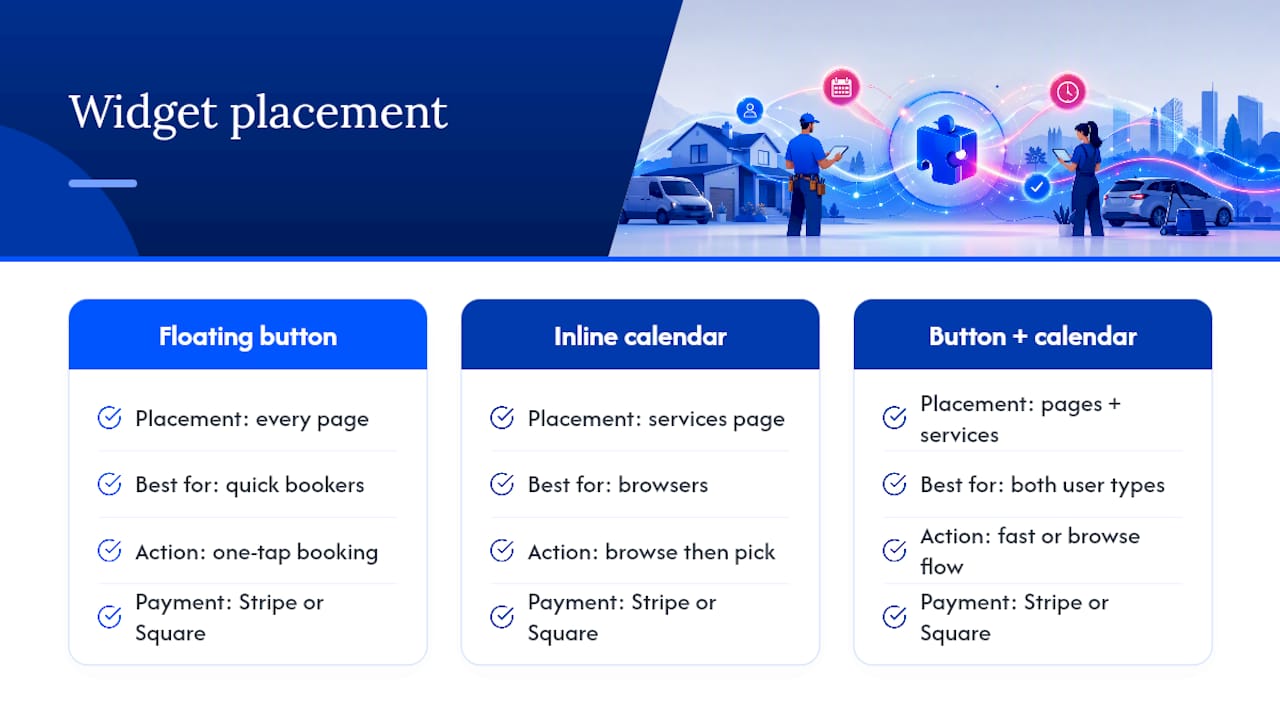
If you run your business on Exclusively, your embed and token settings live inside your dashboard’s website section, right alongside your branded site editor. For barbers and salons, the most common placement is a floating booking button on every page plus an inline calendar on your services page. That combination covers both quick bookers and clients who want to browse first.
Bookings taken through the embedded widget route straight into the same Stripe or Square payment flow as your branded app, so deposits and full payments post to one dashboard either way. Need a visual walkthrough before you preview or publish? Exclusively’s booking help videos cover the whole process step by step.
Why Embedding Beats Linking Out
An embedded widget keeps visitors on your site instead of bouncing them to a third-party page, and that alone tends to lift completed bookings. A quick install can put you in front of clients booking at midnight instead of waiting for a callback. Still, keep a hosted booking link in your toolkit for social bios and email footers. It’s a solid companion to embedding, not a replacement for it.
— Service
Exclusively: Branded Booking, Native Apps, and Built-In Payments
Getexclusively is the alternative to stitching together a generic embed on a template site. You get a fully branded website and native iOS and Android app with booking, Stripe or Square payments, and calendar sync built in from day one, so there’s no snippet-hunting or token troubleshooting later.
If you’re a barber or beauty professional ready to stop patching together embeds and start booking through a platform built for your business, check Exclusively’s pricing for websites, booking, and mobile apps, or book a call to walk through migrating your existing setup.
Sources
- Embed the Booking Widget — Hiveku docs
- Adding the booking widget to your website — FieldCamp docs
- How to Add a Booking Widget to Any Website in 5 Minutes — Kentroi Blog