
Stop Double Bookings: Real Time Two Way Calendar Sync for Salon Owners
Stop Double Bookings: Real Time Two Way Calendar Sync for Salon Owners
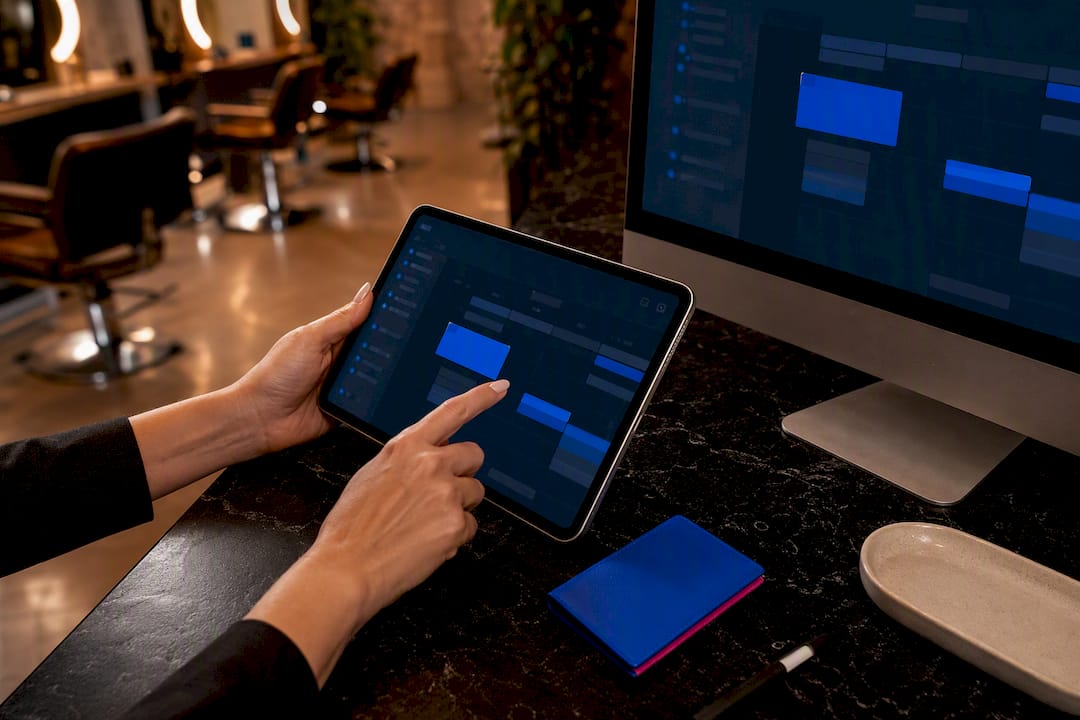
Real-time two-way sync between Google Calendar and your booking platform is the right call for most salons. It checks live availability the moment a client opens the booking page, so double-bookings stop happening, and every appointment writes back to Google Calendar with the client’s name, service, and notes attached. If your current software doesn’t offer native integration, an automation bridge or API connection is a reasonable stopgap, but you’ll need admin access on both systems to set any of it up correctly.
TL;DR:
- Native two-way sync is most reliable and instant but often requires a paid plan or multiple calendars for multi-location salons.
- Using automation bridges like Zapier introduces delays and may cause double bookings if polling intervals are too long.
- Proper setup involves confirming OAuth permissions, mapping each stylist’s calendar separately, and running thorough test bookings to verify data accuracy.
- Polling delays of 15 to 30 minutes in ICS feed subscriptions can lead to double-bookings and are unsuitable for real-time scheduling.
- Fixing common sync issues requires checking token expiration, permission scopes, consistent timezones, and ensuring the sync cronjob runs regularly.
Table of Contents
- Comparing Your Google Calendar Sync Salon Options
- How Do I Enable Two-Way Google Calendar Sync?
- Setting Up Bridges, Marketplace Apps, and Calendar Feeds
- Why Isn’t My Salon Calendar Syncing Correctly?
- How Can Salons Prevent Double-Booking With Google Calendar?
- When Should You Use a Bridge Versus a Full Integration?
- How Exclusively Handles Calendar Sync for Salons
- Where to Find Official Setup Documentation
- Sources
- FAQ
Comparing Your Google Calendar Sync Salon Options
Not every salon needs the same setup. A single chair booking a dozen appointments a week has different needs than a five location team juggling twenty stylists.
- Native two-way sync: Built into many booking platforms. Best for multi-stylist and multi-location salons. Highly reliable, near-instant updates, but usually locked behind a paid plan tier.
- Automation bridges (Zapier, Make): Connect two systems that don’t talk natively. Good for single-chair or small-team shops testing a workflow before committing. Setup is moderate, cost is low to mid, but there’s a delay between the trigger and the update.
- API or webhook integration: Custom-built connection for salons with in-house tech support or a developer on retainer. Highly flexible and near-real-time, but it takes real setup time and ongoing maintenance.
- ICS/calendar feed subscriptions: One-way, read-only calendar sharing. Fine for showing a stylist’s personal schedule but not built for two-way booking sync.
If you’re piloting a new booking tool, start with a bridge. Once you’re seeing consistent bookings and the manual patching becomes a weekly headache, that’s your signal to move to native or API integration.
How Do I Enable Two-Way Google Calendar Sync?
Before touching any settings, confirm you have a Google Workspace or Gmail admin login, admin rights in your booking software, and a list of calendar IDs if each stylist has a separate calendar.
- Open your booking platform’s integration settings, usually under “Calendar” or “Connected Apps.”
- Start the Google OAuth connection flow. You’ll be redirected to Google to approve calendar read/write permission scopes.
- Select which calendar (or calendars) to sync. Multi-stylist shops should map each staff member to their own calendar rather than dumping everyone into one.
- Set the sync direction. Choose two-way if you want Google events created outside the booking system (a doctor’s appointment, a personal errand) to block that time slot automatically.
- Save the connection and run a test booking. Book a dummy appointment and confirm it appears on Google Calendar within a few minutes.
Once connected, look for optional settings that let you lock slots based on non-booking Google events, and map intake form answers into the event description field. Multi-calendar salons should double-check that the booking system is reading availability from every connected calendar, not just the first one added.
When you verify the test event, check that the title includes the client’s name and service, the time block matches the service duration exactly, and the description carries contact info or notes. If any of that is missing, the field mapping needs adjusting before you go live.
Pro Tip: Book a test appointment at the very end of your business day. That way, if something breaks, you’re not staring at a phantom double-booking during your busiest hour.
Setting Up Bridges, Marketplace Apps, and Calendar Feeds
When your booking software has no native Google Calendar option, a bridge fills the gap. A typical Zapier or Make flow watches for “new booking created” in your salon software, then creates a matching Google Calendar event, and a second flow watches for calendar changes and pushes them back. Both directions require you to authorize OAuth access separately, once for the booking app and once for Google.
Apps distributed through the Google Workspace Marketplace offer another route, often with the calendar connection built into installation instead of a separate automation step.
Some salons instead subscribe to an ICS or iCal feed, which pulls calendar data on a schedule rather than instantly. That delay is exactly where trouble starts:
- Polling every 15 to 30 minutes means a client could book a slot that was just filled elsewhere, and neither calendar knows yet.
- ICS feeds are typically one-way, so changes made in Google won’t flow back into your booking system.
- Rate limits on free automation tiers can stretch that delay even further during busy hours.
Run a quick reliability check before trusting any bridge: give each event a unique title that includes the booking ID, confirm the timezone is stamped on every event, and manually test a reschedule and a cancellation to see if both sides update.
Why Isn’t My Salon Calendar Syncing Correctly?
Sync failures tend to fall into a handful of repeat offenders. Missing events usually trace back to an expired OAuth token or a revoked permission scope. Duplicate events point to a bridge running two triggers on the same booking. Failures to write client details back into the booking system are often a cronjob that stopped running.
- Check the cronjob schedule. Self-hosted plugins rely on scheduled tasks to trigger sync, and vendor documentation for WordPress booking plugins commonly flags cronjob failures as the top cause of missed syncs. A cronjob set to run every 15 minutes (
*/15 * * * *) is a reasonable default for most salons. - Refresh expired tokens. If Google revokes access after a password change or security review, you’ll need to reconnect through OAuth again.
- Align timezones across all three systems. Your server, your booking software, and your Google Calendar account all need to agree on a timezone, or appointments will land an hour or more off.
- Confirm permission scopes weren’t downgraded. A staff member accidentally editing calendar sharing settings can quietly break write access without triggering an obvious error.
After any fix, run the same four-step check every time: create a test booking, confirm it appears correctly, reschedule it, then cancel it. If all four steps reflect correctly on both sides, the sync is solid again.
Pro Tip: Keep a dummy “test client” profile in your system permanently. Reusing it for every sync check saves you from cluttering real client records with fake appointments.
How Can Salons Prevent Double-Booking With Google Calendar?
The single biggest lever against double-booking is checking availability in real time, at the moment a client loads the booking page, rather than relying on a periodic sync that runs every few minutes. A polling gap of even ten minutes is enough for two clients to grab the same slot during a busy Saturday morning.
- Choose a booking system that reads live Google Calendar availability rather than a cached copy.
- Write full event details into every calendar entry: client name, service, duration, and any intake notes. A well-built event becomes a briefing document your stylist can glance at before the client sits down.
- Give each stylist their own calendar rather than one shared shop calendar, and confirm the booking system checks all of them before opening a slot.
- Set a clear team policy for personal or non-booking events. Either put them on a calendar the booking system already reads, or agree on a shared naming convention so nobody double-books a colleague’s dentist appointment by mistake.
Salons that also want more booking volume to protect, not just fewer scheduling conflicts, often pair calendar reliability work with visibility work. A salon-focused SEO service can help make sure the calendar you just fixed is actually filling up.
When Should You Use a Bridge Versus a Full Integration?
If you’re running a single chair or testing a new platform, start with a bridge. It’s fast, cheap, and good enough while you validate demand. Once you’re adding stylists, opening a second location, or fixing double-bookings weekly, that’s your cue to move to native or API integration. When switching, pilot the new connection on one stylist first, export existing appointments before cutting over, and give clients a heads-up if booking links change.
— Service
How Exclusively Handles Calendar Sync for Salons
This platform is designed for salons that want calendar sync without duct-taping five different tools together. Every branded booking page checks provider-level availability directly, writes client and service details back into the connected calendar, and supports separate calendars for each stylist on the team, which solves the multi-chair headache most bridges create.
If you’re comparing options, see how the setup stacks up against SQUIRE or Booksy before you commit to a switch. The booking and calendar sync features are worth testing on a single stylist first, and the booking help videos walk through calendar verification step by step so you’re not guessing whether it’s working. Check pricing and start a trial with one calendar connected to see how it behaves before moving your whole team over.
Where to Find Official Setup Documentation
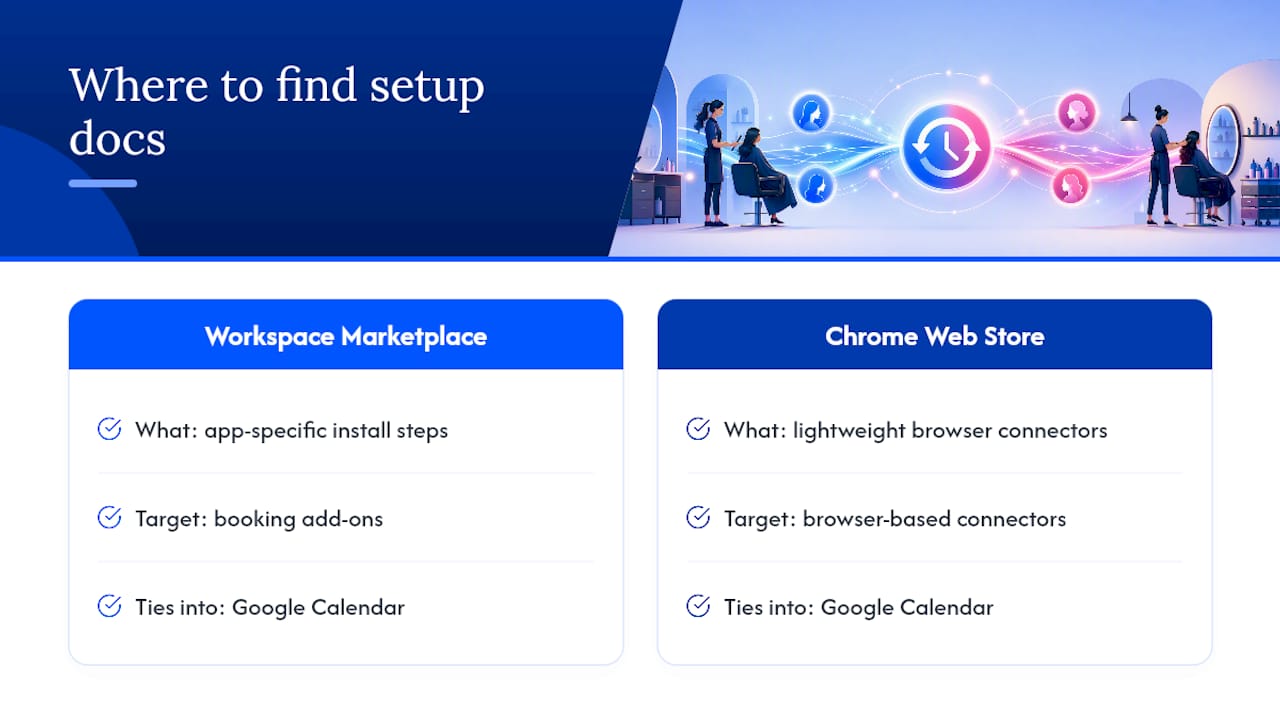
For app-specific install steps, check the Google Workspace Marketplace listing for booking add-ons, and the Chrome Web Store extension page for lightweight browser-based connectors that tie into Google Calendar.
Sources
- Free online appointment booking software — Google Workspace Marketplace
- Wordpress
- Koalendar - Free appointment scheduling extension — Chrome Web Store
FAQ
How do I force Google Calendar to sync?
Open your booking platform’s integration settings and trigger a manual “sync now” action if one exists, or disconnect and reconnect the Google account through the OAuth flow to force a fresh pull.
How do I sync my Google Calendar with my salon booking system?
Connect through your booking software’s integration settings, grant calendar read and write permissions during the Google OAuth flow, select the correct calendar or calendars, and test with a dummy booking before going live.
What apps can sync with Google Calendar?
Booking add-ons listed on the Google Workspace Marketplace, WordPress plugins like the one on the WordPress.org plugin directory, and platforms such as Exclusively all support Google Calendar sync, along with automation bridges like Zapier.
How do I set up work hours to sync correctly with Google Calendar?
Set your provider’s working hours inside the booking system first, then confirm the calendar integration reads availability against those hours rather than the calendar’s default free/busy status, so blocked personal time doesn’t accidentally open up as bookable.