
Salon Owners Switch Booking Software Without Losing Client Records
Salon Owners Switch Booking Software Without Losing Client Records
Yes, you can switch salon booking software without losing a single client record, as long as you follow one sequence: export everything, test the import on a small batch, run both systems in parallel for a few days, then flip your public links. Do three things today: export a full client CSV from your current system, save an encrypted backup of it somewhere offline, and book a short test window with your new vendor or a sandbox account.
TL;DR:
- Most salons can safely switch booking systems without losing client data by exporting, testing small imports, and running both platforms in parallel before the full switch.
- Export all client records, visit history, upcoming appointments, service menus, staff permissions, and inventory data before migration, paying close attention to date and time formats.
- For larger operations or those with complex memberships, using concierge migration services reduces risk, while solo salons with simple data can perform speedier DIY migrations.
- Update all booking links across websites, social media, and printed materials simultaneously to prevent clients from landing on outdated pages during the transition.
- Payments and stored card data should move last, with reconciliation of deposits and gift card balances completed beforehand, since tokenization rules typically prevent direct transfer.
Table of Contents
- Step-by-Step Plan to Switch Salon Booking Software
- What Data Should You Export Before Switching?
- Should You Use Concierge Migration or Do It Yourself?
- How Do You Test the Import Before Going Live?
- Where Do You Need to Update Booking Links?
- How Do You Handle Payments and Deposits During the Switch?
- How Do You Keep Client Data Secure During Migration?
- When Is the Best Time to Switch Salon Software?
- How Exclusively Supports a Smooth Migration
- What Owners Actually Learn From Switching Systems
- Get a Branded Booking Platform With Migration Support
- Sources
- FAQ
Step-by-Step Plan to Switch Salon Booking Software
Migrating salon software isn’t complicated, but it punishes shortcuts. Skip the test import and you’ll spend a Saturday morning fielding calls from clients whose appointments vanished. Follow the order below and most of that risk disappears before it starts.
- Audit and assign roles. Decide who exports data from the old system, who verifies the new one, and who owns updating public links. One person should be the final decision maker on cutover day, even if a concierge team is handling the technical lift.
- Run a small-batch test import. Pull a small batch of client records, a handful of past visits, and a few upcoming bookings. Import them into the new salon appointment management system and check that names, phone numbers, appointment times, and notes all landed where they should.
- Verify booking behavior, not just data. Create a test booking, reschedule it, cancel it, and issue a mock refund. If any of those actions behave strangely, you want to know now, not the week you go live.
- Import the full dataset in order. Bring over clients first, then visit history and notes, then service menu and staff settings, then the forward-looking calendar. Payments and stored cards come last, for reasons covered further down.
- Run both systems in parallel for a short window. Keep the old platform live and readable while the new one takes over new bookings. This is your safety net if something in the full import behaves differently than the test batch did.
- Switch the public links and notify staff and clients. Update your website widget, social bios, and Google Business Profile in one sitting, then do a same-day spot check of the first handful of bookings that come through.
This sequence mirrors what most migration guides recommend: clients first, history next, calendar after that, and payments moved separately at the end. The order matters more than the speed. A salon that takes three extra days to test properly loses far less than one that rushes and has to manually re-enter forty double-booked appointments.
What Data Should You Export Before Switching?
Before you touch the new platform, get a complete export from the old one. Most systems will produce this as CSV or Excel files, and vendor help-center pages typically walk through the process of exporting appointments, client lists, and product data for exactly this purpose.
Your export checklist should cover:
- Client records, including contact details, consent flags, and any custom fields (allergy notes, color formulas, preferred stylist).
- Full visit history with staff notes attached to each appointment, not just a running list of dates.
- Upcoming appointments and recurring bookings, since these are the ones that break a client’s trust fastest if they disappear.
- Service menu, pricing tiers, and duration settings for every offering.
- Staff permissions and calendar settings for each provider.
- Inventory counts, gift card balances, and active membership records.
Date and time formatting is where most exports quietly fail. A CSV built in one time zone can shift every appointment by an hour once it lands in a system configured for another, and custom fields (like a shorthand color code) often don’t map to anything in the new platform unless you rename the column first. Open the raw file before importing anything and scan for garbled dates or blank columns.
Pro Tip: Label every export file with the export date and system name, and keep at least one copy in an encrypted, offline location until your first full month of bookkeeping in the new system reconciles cleanly.
Should You Use Concierge Migration or Do It Yourself?
The right answer depends on how much data you’re moving and how much risk you can absorb if something goes sideways.
- Choose assisted migration if you run five or more chairs, operate multiple locations, or track memberships, packages, and gift card balances that would be painful to re-enter by hand.
- Concierge teams typically handle CSV mapping, bulk client and history import, and initial booking widget setup, and they’ll usually ask for the same exported files you’d need anyway: clients, history, calendar, and service menu. Several salon-focused vendors offer this as part of onboarding rather than as a paid extra.
- DIY works well if you’re a solo stylist or a small team with a clean, current client list and no complicated membership structures. The main quick win is simply doing the small-batch test import yourself before committing to a full migration.
How Do You Test the Import Before Going Live?
Testing is where most migration disasters get caught before they become client-facing problems.
- Pick a small test batch of clients that includes a mix of simple bookings and complicated ones (recurring appointments, package redemptions, a canceled visit).
- Simulate a full life cycle: book, reschedule, cancel, and refund. If refunds route incorrectly or reschedules break recurring series, that’s a mapping issue to fix before the full import.
- Check that notes, formulas, and staff assignments transferred with the appointment, not just the date and time.
- Run the full import once the test batch checks out clean.
- Keep the old system live in parallel for several days to a week, cross-checking new bookings against it daily.
Estimated timelines vary by size: a solo salon can often finish testing and full import within a few days, while a multi-location business may need a longer parallel run to catch location-specific quirks.
Pro Tip: If the full import produces mismatched appointment counts or duplicate clients, stop before switching your public links. Roll back to the old system, fix the mapping error in your source CSV, and re-run the import rather than trying to patch records manually inside the new platform.
Where Do You Need to Update Booking Links?
Stale links are the single most common failure point in a software switch, not lost data. A client who taps an old Instagram link and lands on a dead booking page assumes you’re closed, not that you switched systems.
Update these in one sitting, ideally within a few hours of each other:
- Website booking widget and homepage “Book Now” button.
- Instagram and Facebook bio links.
- Google Business Profile booking link.
- Email signatures and any automated confirmation or reminder templates.
- Printed or digital QR codes at the front desk.
Send a short client message the same day: one line announcing the new system, one line on what to expect (same services, same stylists, new booking link), and the direct link itself. Overlap your old and new links for a day or two if your platform allows redirects, so anyone using a bookmarked page still lands somewhere useful.
How Do You Handle Payments and Deposits During the Switch?
Payments move last for a reason. Stored card tokens are tied to a specific processor’s vault, and tokenization rules generally prevent them from transferring directly to a new system, even if every other client field imports cleanly.
- Reconcile outstanding deposits and gift card balances in the old system before final cutover, so you have a clean snapshot to check against.
- Expect to ask returning clients to re-enter payment details once on the new processor, or use a short-term redemption pause for gift cards while balances get reissued.
- Coordinate timing with your bookkeeper. A mismatch between the old ledger’s closing balance and the new system’s opening one is far easier to trace the same week than three months later.
How Do You Keep Client Data Secure During Migration?
Migration is exactly the kind of moment small-business cybersecurity guidance is written for: a short window where data sits in transit, in extra copies, and outside its normal system of record.
- Create at least three backups before you start: the raw exported CSV, an encrypted offline copy, and a cloud copy. NIST’s small-business guidance recommends verifying that backups actually restore, not just assuming they will.
- Limit export and import access to named admins only, and keep a record of who approved each step.
- Encrypt files both while they’re being transferred and while they’re sitting on a drive waiting for the next migration step.
- Store recovery credentials for both the old and new systems offline, not in a shared inbox.
- Keep every backup until your first full financial reconciliation is complete, then test that at least one restored record matches the original before deleting anything.
Following a documented framework like NIST’s isn’t overkill for a five-chair salon. It’s the difference between a two-day inconvenience and a client-trust problem that takes months to repair.
When Is the Best Time to Switch Salon Software?
Pick a slow week, not a slow-looking week. Industry guides consistently point to January and February as favorable windows, since booking volume tends to dip after the holiday rush and staff have more bandwidth to test and train.
- A solo stylist can usually complete export, test, and cutover in a short time.
- A five-chair salon should plan for closer to a week, including a short parallel run.
- Multi-location or enterprise operations should budget one to several weeks, especially if the switch includes staged setup for forms, charts, or membership records.
Schedule staff training and the test import earlier in the window, so the actual cutover day is just flipping a switch, not troubleshooting.
How Exclusively Supports a Smooth Migration
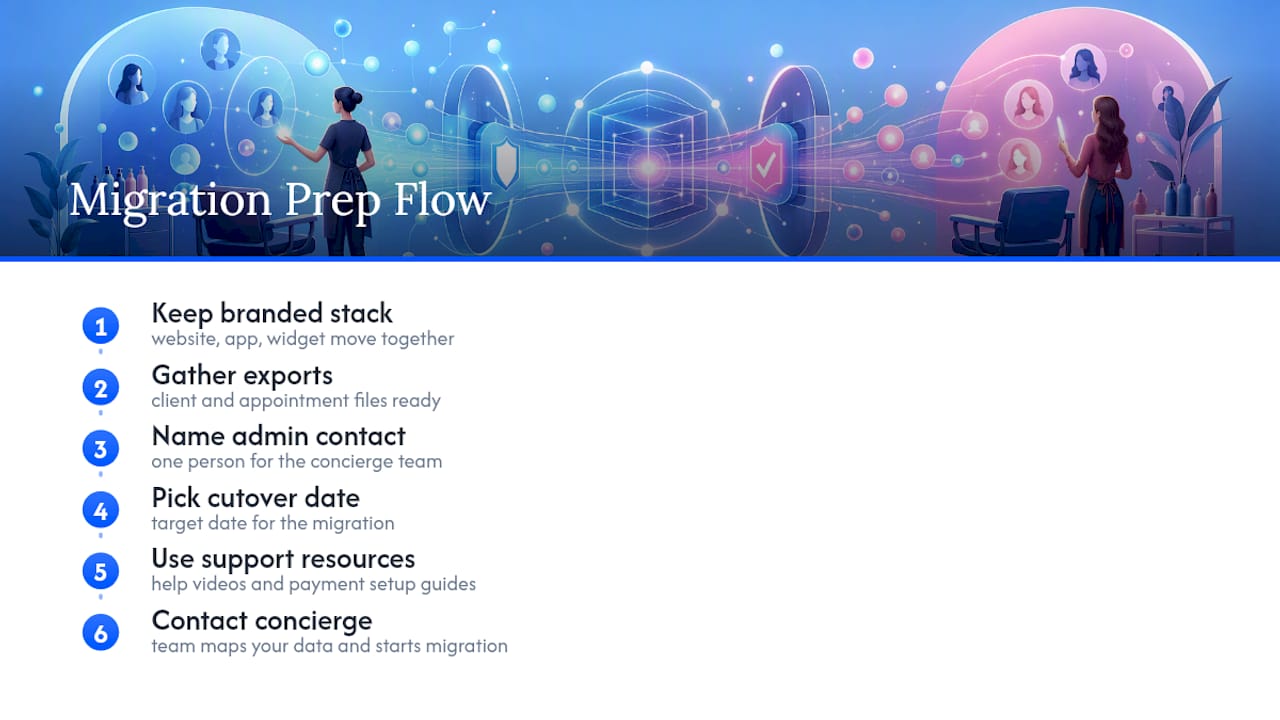
Exclusively is built around giving each barbershop or salon its own branded website, mobile app, and booking system rather than a generic shared profile, with providers keeping control over their own pricing and availability. That structure matters during a migration, because your booking widget, app, and client-facing brand move together instead of getting rebuilt piecemeal.
Support resources include booking help videos covering widget setup and payment configuration, plus built-in Square payment integration for processing once you’re live. Before reaching out, have your exported client and appointment files ready, a named admin contact on your side, and a target cutover date in mind. That short prep list is usually all a concierge team needs to start mapping your data.
What Owners Actually Learn From Switching Systems
The lesson that surprises most owners: data loss is rarely the real threat. It’s a forgotten link in an Instagram bio or a front desk staffer who doesn’t know where the new calendar lives. Put one person in charge of cutover day, have your team practice a handful of test bookings before going live, and expect a few days of spot-checking rather than a flawless first morning. That’s normal, not a sign something went wrong.
— Service
Get a Branded Booking Platform With Migration Support
Switching platforms is a real project, but you don’t have to rebuild your online presence from scratch to do it. Exclusively gives each business its own branded website, native app, and booking system instead of a shared generic profile, so when you migrate, your clients see your brand, not a template. Pricing runs by tier: Website + Booking at $199 per month, or Website + Booking + Apps at $299 per month for a fully native iOS and Android presence under your own name.
During onboarding, the typical work involves mapping your exported CSV fields, importing client and history records, embedding your booking widget on your custom website, and training staff on the new dashboard. For salons juggling booking links across social platforms, it’s also worth reviewing your overall online discoverability with a partner like Salon SEO Services so your new booking page ranks as well as your old one did.
If you’re ready to see how the migration would work for your salon specifically, book a call or check the full pricing breakdown before your next slow week arrives.
Sources
- How to Switch Salon Software and Migrate Client Data
- CSWP 50, Small Business Cybersecurity: Non-Employer Firms | CSRC
- The Salon Business - Best Salon Software Guide 2026
- Best AI Salon Software 2026: GlossGenius vs Boulevard vs Vagaro vs Mangomint | AI Stack Guides
FAQ
What Is the Best Booking Software for Salons?
There’s no single best option for every salon. The right pick depends on whether you need a generic shared profile or a fully branded website, app, and booking system under your own name, which is the model Exclusively is built around for barbers and beauty professionals.
What Is the Best Booking System for Hair Salons?
For hair salons juggling multiple stylists, look for provider-level control over pricing and availability rather than one shared calendar. Systems that let each stylist manage their own schedule while keeping one consistent client-facing brand tend to reduce double-booking and scheduling conflicts.
What Is the Best App for Booking Salon Appointments?
The best app is one that carries your salon’s own branding rather than listing you inside a generic marketplace app. Exclusively builds native iOS and Android apps under the business’s own brand, which keeps the booking experience consistent from website to app to in-chair visit.
What Is the Best Spa Scheduling Software?
Spa scheduling needs the same core features as salon software (visit history, staff calendars, deposit handling) plus room for membership and package tracking. Prioritize a platform that exports and imports cleanly, since spas often carry more complex membership data than a typical hair salon.
How Long Does It Take to Switch Salon Booking Software?
A solo stylist can usually complete testing and full migration within a few days, while multi-location businesses may need several weeks for full onboarding and reconciliation. The timeline depends more on data complexity, like membership records and forms, than on the number of clients alone.
Will I Lose Client History When I Switch Systems?
You won’t lose client history if you export it correctly and test the import before going live. The safest sequence is exporting clients first, then visit history, then the forward calendar, with a small test batch verified before the full import runs.