
Stop Double Bookings: 5 Booking Settings for Salon Time Blocking
Stop Double Bookings: 5 Booking Settings for Salon Time Blocking

Time blocking in a salon booking system means reserving fixed slots on a provider’s calendar, whether for a color service, an assistant-only step, or a lunch break, so clients can’t book over them. Done right, it stops double bookings, protects prep and processing time, and lets each stylist control their own schedule without constant manual edits. The right setup also comes with booking help videos and built-in payment integrations, so you’re not configuring this blind.
TL;DR:
- Use buffers for brief cleanup gaps, but hard block processing time, breaks, training, rentals, or any period when a chair, assistant, or room is unavailable.
- Align slot length with buffer units to prevent confusing gaps, and use lead times and booking windows to restrict when clients can book.
- Choose NONE when clients select a stylist, BALANCED to distribute bookings, and COMBINED when a stylist and room must both be free.
- Set individual services, prices, buffers, and lead times for each provider; owners should control salon hours, holiday closures, and event blocks that override calendars.
- External calendar sync blocks conflicts from Google or Outlook calendars but slows each availability check, so enable it for providers who need that protection.
Table of Contents
- When salons actually need a hard block
- Key booking settings that make time blocking work
- How scheduling engines actually resolve availability
- Provider-level control inside a branded platform
- Why provider control changes how booking actually feels
- How Exclusively handles time blocking for your shop
- FAQ
- Sources
- Next steps for setting this up
When salons actually need a hard block
A short buffer works fine between a basic haircut and the next appointment, but plenty of salon services need something sturdier: a reserved slot that clients and the scheduling system both treat as unavailable, no matter what.

Color processing is the clearest case. A balayage or full-color service might run 45 minutes of active work followed by 30 minutes of processing time where the stylist is free but the chair isn’t. Without a hard block, the system might let a walk-in grab that chair, or let the online calendar show the slot as open when it isn’t. The same logic applies to any staged service that needs a second resource, like a color service that requires an assistant for rinsing or a keratin treatment that needs a second station.
Lunch breaks, staff training, and studio rentals need blocks that fully hide availability rather than just slow it down. A buffer still shows up as “almost available,” while a true block removes the slot from client view entirely.
- Use a buffer when you need a short gap for cleanup or reset between similar services.
- Use a hard block when a resource (a chair, an assistant, a room) is unavailable regardless of what else is happening.
- Use a hard block for anything that should never appear as bookable to a client, including internal meetings and rentals.
Key booking settings that make time blocking work
Most of this comes down to a handful of settings that your booking platform needs to expose clearly, because a feature that exists but is buried three menus deep rarely gets configured correctly.
- Slot length and interval: this is the base unit your calendar divides into (often 15, 30, or 60 minutes), and it determines how buffer time behaves around it.
- Buffer time and adjacent buffering: a buffer reserves extra minutes before or after a service, but the buffer unit has to match your slot unit or you’ll see availability gaps that don’t make sense, a mismatch WooCommerce’s booking documentation flags directly.
- Lead time and booking window: lead time sets how soon before an appointment a client can still book, while minimum and maximum bookable-in-future rules control how far out someone can reserve a slot, useful for stopping both last-minute chaos and bookings six months out that you can’t realistically staff for.
- Max bookings per block: for multi-seat services like a blowout bar or a group styling session, this caps how many clients can land in the same slot.
- Default availability mode: decide whether new time ranges start as available-by-default or closed-by-default, then layer custom ranges (specific dates, days of week, or month-based rules) on top, following whatever priority order your system applies when rules overlap.
Platforms built for service businesses, including options documented by GemBooking’s plugin guide, bundle per-service duration, buffers, weekly overrides, and double-booking checks into one settings panel, which is worth comparing against whatever you’re currently using.
Pro Tip: Set your slot length and buffer time in the same unit from day one. Mixed units are the single most common cause of availability that looks broken but isn’t.
How scheduling engines actually resolve availability
Behind the settings you click, a scheduling engine is running logic to decide which slots to show and which to hide. Understanding the basics helps you configure it instead of guessing.
RoundRobin modes control how the system picks a provider when a client doesn’t request one by name. RANDOM assigns someone arbitrarily among eligible providers, BALANCED spreads bookings evenly across staff, NONE shows every provider who’s free so the client picks, and COMBINED requires multiple resources, like a stylist and a private room, to be free at the same time. These modes are defined in OnSched’s availability documentation, which also covers how slot generation applies service duration, padding, and capacity against existing appointments.
- Use NONE when clients care who they book with and should see all open providers for a time.
- Use COMBINED for services that need two resources at once, and make sure you’ve set explicit resource IDs, since COMBINED only returns slots where every listed resource is jointly free.
- Use BALANCED if you want bookings spread fairly across a team rather than stacking on one favorite stylist.
External calendar sync adds another layer: enabling it means the system checks a provider’s Google or Outlook calendar before confirming a slot is open, which blocks real conflicts but adds latency to every availability check, according to OnSched’s documentation on sync behavior. Decide whether that tradeoff is worth it for providers who manage personal appointments on a synced calendar.
Provider-level control inside a branded platform
A salon’s booking system has to work at two levels at once: shop-wide hours that set the outer boundaries, and individual provider schedules that live inside them. Getting this split right is what keeps a multi-stylist shop from turning into a scheduling headache.
Location-wide hours set when the shop is open at all. Provider schedules narrow that down further, since one stylist might work mornings only while another covers evenings and weekends. A well-built admin panel lets each provider manage their own services, pricing, and lead times without touching anyone else’s calendar, while ownership retains the ability to push shop-wide blocks, like a holiday closure or a staff meeting, that override every provider’s calendar at once regardless of their individual settings.
- Provider-level settings should cover services offered, pricing, lead time, and buffer preferences specific to that person.
- Owner-level settings should cover shop hours, holiday closures, and any promotional blackout dates that apply to everyone.
- Central event blocks need to take priority over individual provider availability when the two conflict.
Payment handling and onboarding support matter here too. A platform that integrates Stripe and Square directly into the booking flow removes a separate checkout step, and booking help videos make it realistic for a shop owner, not a developer, to configure all of this correctly on the first try.
Why provider control changes how booking actually feels
Clients book with a person, not a generic grid of open slots, which is why a branded experience where a stylist’s name, portfolio, and availability all live under one shop’s identity tends to build more trust than a bare third-party directory listing. Provider-level control matters just as much on the operations side: when each stylist manages their own buffers and lead times instead of fighting shared defaults, fewer bookings land in the wrong slot. Reviewing the available setup walkthroughs before rollout saves a lot of back-and-forth later.
— Service
How Exclusively handles time blocking for your shop
Our system integrates provider-level availability, branded booking, and payment processing into a unified platform. Each stylist can set their own services, pricing, and lead times, while central control over shop-wide hours and holiday blocks is maintained, all within a branded site and app.
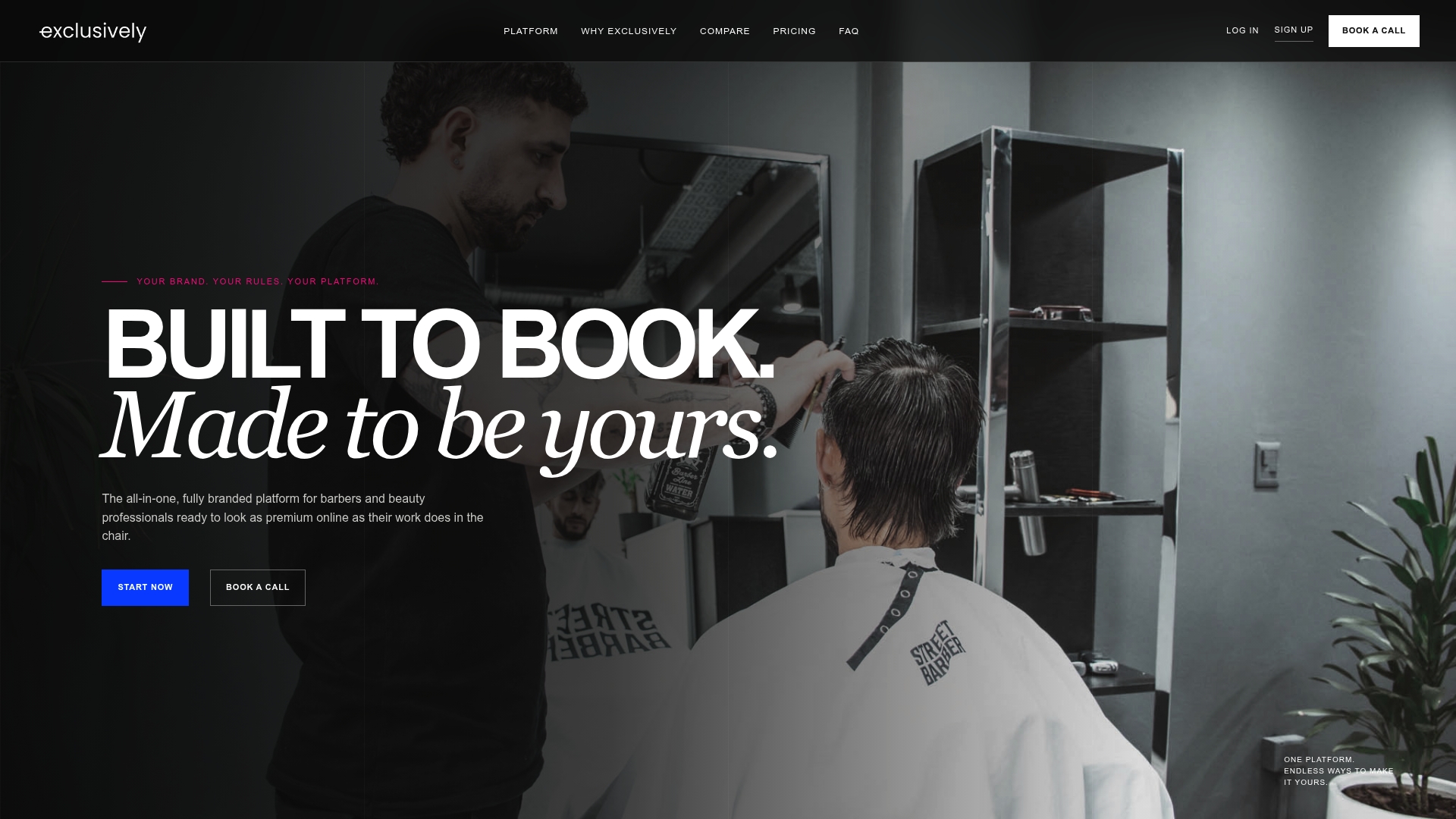
Bookings run through integrated Stripe and Square processing, and our booking help videos walk through buffer setup, lead times, and provider schedules step by step. Plans start with the Business Website plan, with options for Website + Booking, and Website + Booking + Apps, with pricing details available on our pricing page. If you’d rather talk it through first, you can book a call and we’ll walk your shop’s specific setup with you.
FAQ
What is a hard block in salon booking software?
A hard block is a reserved time slot that the booking system treats as fully unavailable, hiding it from clients regardless of how the rest of the calendar looks. It’s used for processing time, assistant-only steps, staff breaks, or any period that should never show up as bookable.
How does buffer time differ from a hard block?
Buffer time adds a short cushion before or after a booking, such as a few minutes for cleanup, without necessarily hiding the slot from view entirely. A hard block removes the time from availability completely, which is why services needing a dedicated resource, like a color chair during processing, typically need a block rather than a buffer, per WooCommerce’s availability settings documentation.
Does syncing an external calendar actually block appointment slots?
Yes, when external calendar sync is enabled, the scheduling engine checks a provider’s connected Google or Outlook calendar before confirming a slot is open, and a conflicting personal event will block that slot. This accuracy comes with a tradeoff: enabling sync adds latency to each availability check, as described in OnSched’s documentation.
How do I test that my system actually prevents double bookings?
Try booking the same provider for two overlapping times from two different devices or browser sessions and confirm the second attempt gets rejected or shown as unavailable. Also test joint-availability cases, like a service needing both a stylist and a private room, to confirm the system only shows the slot when every required resource is free.
What’s the difference between roundRobin modes like BALANCED and COMBINED?
BALANCED spreads client bookings evenly across available providers when the client doesn’t request someone specific, while COMBINED requires two or more named resources, such as a stylist and a treatment room, to be jointly free before a slot appears. Both are part of the same scheduling logic described in OnSched’s availability guide, and choosing the right one depends on whether your services need one resource or several at once.
Sources
- Bookings Availability Settings Documentation - WooCommerce
- Availability guide - OnSched docs
- GemBooking – Appointment Booking, Booking Calendar & Reservations
Next steps for setting this up
- WooCommerce Bookings availability settings
- OnSched availability and scheduling API docs
- GemBooking plugin documentation
- Salon hygiene and closure checklist, Master Pro Academy
- Exclusively booking help videos